# How to use Bottom Sheets with Material 2 and 3 with examples in Jetpack Compose
> Learn how to use Bottom Sheets in Jetpack Compose
Published 3 March 2023 by Alex Styl.
In this tutorial we will go through how to use Bottom Sheets in Jetpack Compose. You will learn how to implement Bottom sheets using the Material 2 and 3 library and a different approach in the end of this article.
## The different types of Bottom Sheets in Material Design
There are two different types of Bottom Sheets in Material Design: Standard and Modal. Standard bottom sheets are part of the screen layout and they cannot be dismissed. Modal bottom sheets are similar to dialogs. They are introduced to the screen usually because of a user action, they block the screen underneath them and they can be dismissed by the user.
## The state of Bottom Sheets in Jetpack Compose
The Material 2 compose library comes with both Standard and modal bottom sheets composables you can use.
The Material 3 compose just introduced an experimental `ModalBottomSheet` composable which you can use the Modal Bottom Sheet in your apps. There is no Standard bottom sheet composable yet.
## Bottom Sheets in Material 2
### How to use a Standard bottom sheet
As Standard bottom sheets are part of your screens layout, you need to use a `BottomSheetScaffold`.
You would need to provide the contents of your bottom sheet via the `sheetContent`.
```kotlin
BottomSheetScaffold(
sheetContent = {
Column(Modifier.fillMaxSize()) {
Row(
modifier = Modifier
.fillMaxWidth()
.padding(horizontal = 16.dp),
verticalAlignment = Alignment.CenterVertically
) {
Text("Current song title", modifier = Modifier.weight(1f))
IconButton(onClick = { /*TODO play song*/ }) {
Icon(
Icons.Rounded.PlayArrow,
contentDescription = "Play"
)
}
}
}
}) {
Box(Modifier.fillMaxSize().padding(16.dp)) {
Text("Main Screen Content")
}
}
```
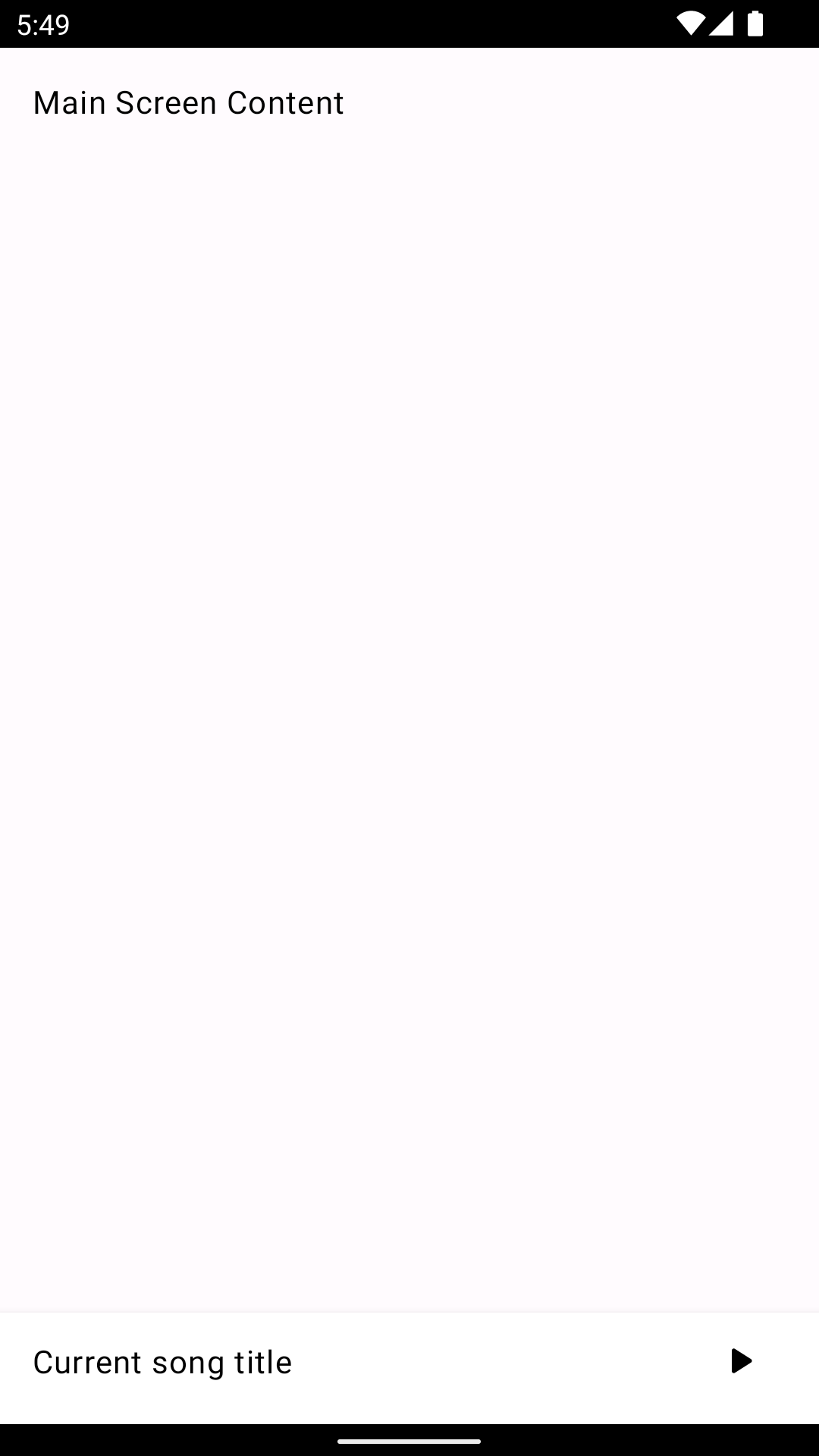
You can also manually toggle the sheet's state by passing a `BottomSheetState` into the _scaffoldState_:
```kotlin
val bottomSheetState = rememberBottomSheetState(
initialValue = BottomSheetValue.Collapsed
)
val scope = rememberCoroutineScope()
BottomSheetScaffold(
scaffoldState = rememberBottomSheetScaffoldState(bottomSheetState),
sheetContent = {
// ...
}
) {
// ...
Button(onClick= {
scope.launch {
bottomSheetState.expand()
}
}) {
Text("Expand")
}
}
```
### How to use a Modal bottom sheet
You can implement a Modal bottom sheet using the `ModalBottomSheetLayout`
```kotlin
val sheetState = rememberModalBottomSheetState(
initialValue = ModalBottomSheetValue.Hidden
)
val scope = rememberCoroutineScope()
ModalBottomSheetLayout(sheetState = sheetState, sheetContent = {
Column(Modifier.padding(16.dp)) {
repeat(3) { index ->
Row(horizontalArrangement = Arrangement.spacedBy(20.dp),
modifier = Modifier
.clickable { /* TODO */ }
.fillMaxWidth()
.padding(vertical = 10.dp)) {
Icon(
Icons.Rounded.ShoppingCart, contentDescription = null
)
Text("Option $index")
}
}
}
}) {
Box(Modifier.fillMaxSize(), contentAlignment = Alignment.Center) {
Button(onClick = {
scope.launch {
sheetState.show()
}
}) {
Text("Buy")
}
}
}
```
## Bottom Sheets in Material 3
### How to use a Modal bottom sheet
The current latest Material3 alpha version `1.1.0-alpha07` contains an experimental version of the Modal Bottom Sheet. It works similarly to a `Dialog`:
```kotlin
val sheetState = rememberSheetState()
val scope = rememberCoroutineScope()
Button(onClick = {
scope.launch {
sheetState.show()
}
}) {
Text("Show sheet")
}
if (sheetState.isVisible) {
ModalBottomSheet(
sheetState = sheetState,
onDismissRequest = {
scope.launch {
sheetState.hide()
}
},
) {
Row(horizontalArrangement = Arrangement.SpaceAround) {
CenterAlignedTopAppBar(navigationIcon = {
IconButton(onClick = {
scope.launch {
sheetState.hide()
}
}) {
Icon(Icons.Rounded.Close, contentDescription = "Cancel")
}
}, title = { Text("Content") }, actions = {
IconButton(onClick = { }) {
Icon(Icons.Rounded.Check, contentDescription = "Save")
}
})
}
}
}
```
### How to use a Standard bottom sheet
Material3 compose does not currently provide any Standard bottom sheets composable to use.
In the meantime you have a few options:
- Copy the `BottomSheetScaffold.kt` from Material 2 compose, along with all its imports into your project.
- Use the Material2 compose library in combination to Material3. Keep in mind that as a lot of components (such as `Text` and `Button`) are called the same, you might need to import the composables in your files manually as the IDE might get confused.
- Alter your design to not use a Standard bottom sheet.
## 🎁 BONUS: Bottom Sheets as navigation destinations
One option to consider while implementing bottom sheets is the option of navigation destination. You can use a bottom sheet as the target (destination) of your navigation. This is handy if you want to display a specific modal bottom sheet from multiple parts of your app.
### Implement modal bottom sheets using Accompanist
Accompanist provides a Bottom sheet implementation of the Jetpack Compose library. Example taken from the [Accompanist documentation](https://google.github.io/accompanist/navigation-material/):
```kotlin
@Composable
fun MyApp() {
val bottomSheetNavigator = rememberBottomSheetNavigator()
val navController = rememberNavController(bottomSheetNavigator)
ModalBottomSheetLayout(bottomSheetNavigator) {
NavHost(navController, "home") {
composable(route = "home") {
// ...
}
bottomSheet(route = "sheet") {
Text("This is a cool bottom sheet!")
}
}
}
}
```
### Implement modal bottom sheets using Compose Destinations
The [Compose Destination library](https://composedestinations.rafaelcosta.xyz) provides a [`BottomSheet`](https://composedestinations.rafaelcosta.xyz/styles-and-animations#bottomsheet-style) style to make the destination look like a bottom sheet:
```kotlin
@Destination(style = DestinationStyle.BottomSheet::class)
@Composable
fun ColumnScope.SomeBottomSheetScreen() { /*...*/ }
```
In this tutorial you learnt how to implement bottom sheets in Jetpack Compose. You learnt about the Material
2 and 3 versions of Standard and Modal bottom sheets. You also learnt how to use modal sheets as navigation
deistnations using the Accompanist and Compose Destinations libraries.
---
**Related Resources**
- [Bottom Sheets that... just work](https://composeunstyled.com/docs/components/bottom-sheet/) in Compose Unstyled
- [BottomSheet Style](https://composedestinations.rafaelcosta.xyz/styles-and-animations#bottomsheet-style) at composedestinations.rafaelcosta.xyz