# How to build a custom Facebook login button using Firebase Auth in Jetpack Compose
> Learn how to how to create your own log in button to sign in with Facebook using Jetpack Compose and Firebase Authentication.
Published 2 February 2023 by Alex Styl.
This tutorial showcases how to create your own log in button to sign in with Facebook using Jetpack Compose and Firebase Authentication.
The Facebook SDK provides a standard Login Button view which you can use using the `AndroidView` composable. If you are looking for a way to implement a custom design and login flow in your app, keep reading.
## Add Facebook and Firebase to your Android project
We are going to use 3 different dependencies for this:
- **The Facebook SDK** so that we launch the Facebook Log In flow.
- **Firebase Authentication** so that we can forward the session to Firebase and see our signed in users in the Firebase console.
- **Jetbrain's kotlinx-coroutines-play-services** so that we can wait for Firebase Tasks to complete without requiring an `Activity`.
### Add the Play Services gradle plugin
In your `/build.gradle` file, include the Play Services dependencies in your `buildscript`:
```gradle
buildscript {
dependencies {
// other dependencies
classpath 'com.google.gms:google-services:4.3.15'
}
}
```
In your `app/build.gradle` file, make use of the plugin:
```gradle
plugins {
// your other plugins
id 'com.android.application'
id 'org.jetbrains.kotlin.android'
// this is the new one
id 'com.google.gms.google-services'
}
```
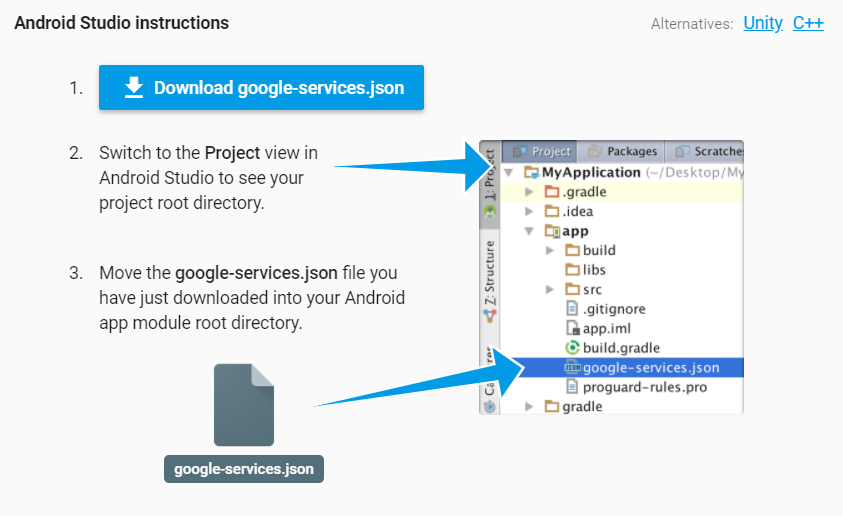
Make sure to include your `google-services.json` file in your `/app` module folder:
### Include your apps SHA certificate fingerprints in the Firebase Console
It is important to include your application's _SHA certificate fingerprints_ in your Firebase Project, otherwise the sign in will always fail.
If you are releasing your app to the Google Play Store you will need to generate and publish an App Bundle. As Google is the one singing your app via the Google Play Store, you can find the keys in the Google Play Store console.
However, if you are generating an APK, you can find the keys on your local machine.
### Where to find the SHA key for your an App Bundle
Open the [Google Play Console](https://play.google.com/console) and select the app you want to add sign in to.
From the left side menu Go to **Release -> Setup -> App Integrity**
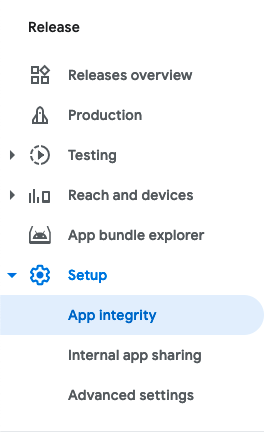
Click on the 'App Signin' tab and copy the `SHA1` value and paste it in your [Firebase project's project settings](https://console.firebase.google.com/project).
### Where to find the SHA key for your APK
Go to your project's terminal in Android Studio (or navigate to your project's root directory via your favorite terminal) and type `./gradlew signingreport`
The command will print the SHA certificate fingerprints of different build variants of your project.
Copy the `SHA1` value of the `debug` variant
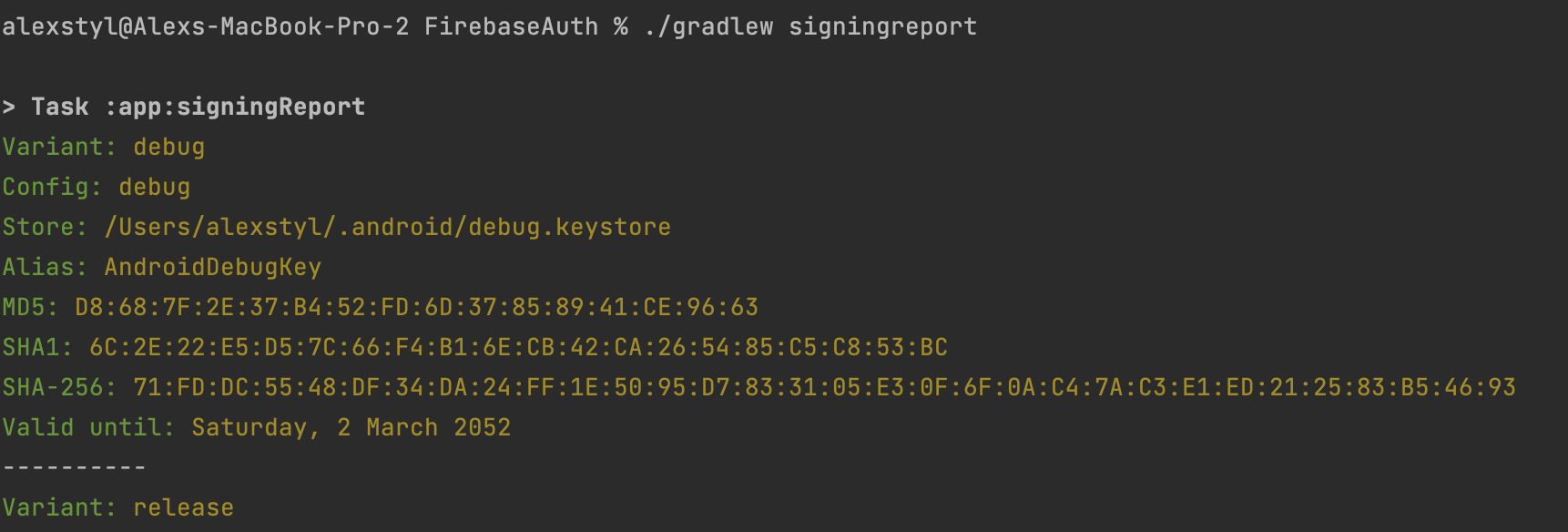
and paste them in your [Firebase project's project settings](https://console.firebase.google.com/project).
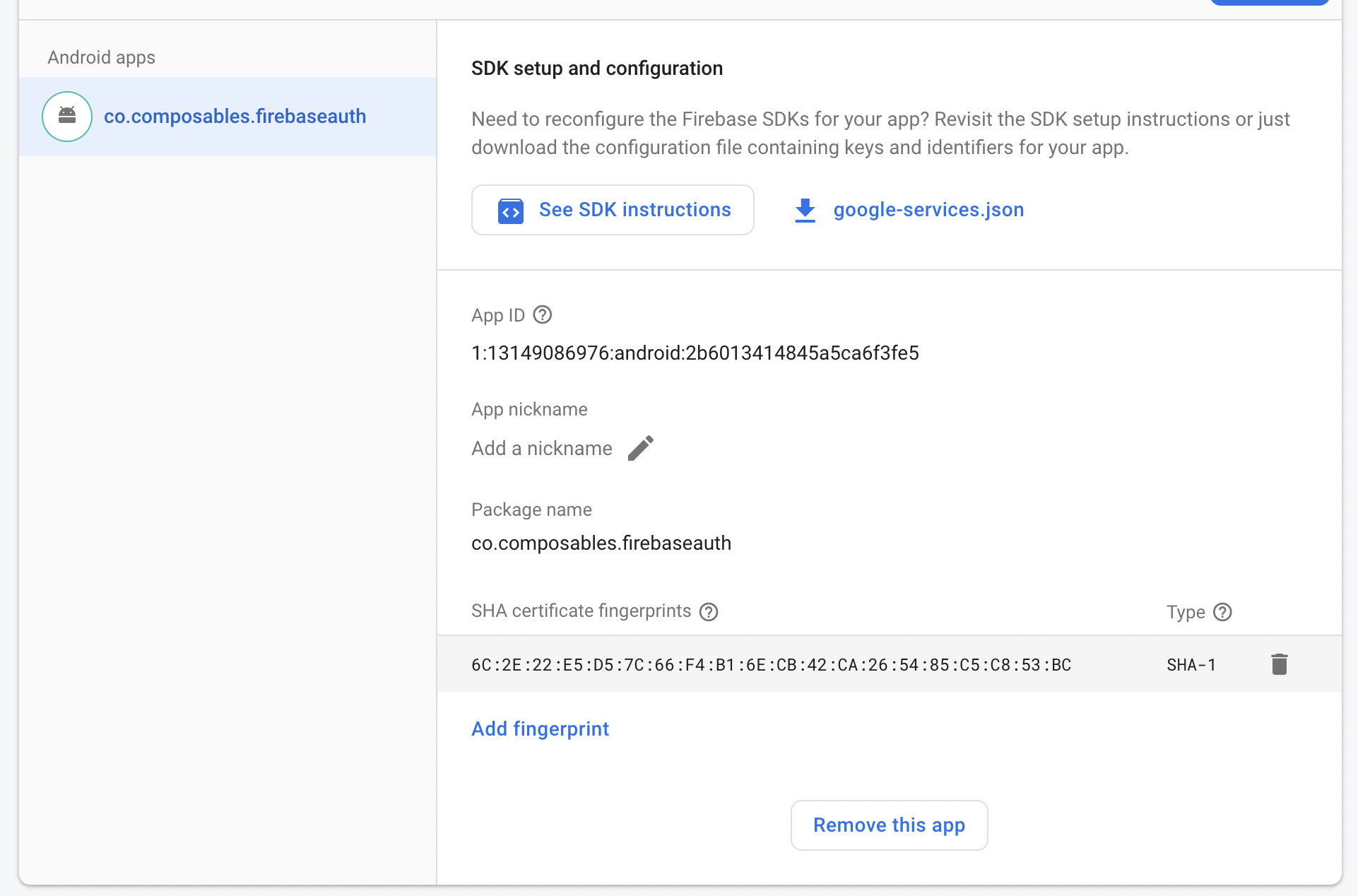
if you are releasing the app to the Play Store, do the same for the `release` variant.
### Include the Gradle dependencies
In your `app/build.gradle` file, add the following dependencies:
```kotlin
implementation platform('com.google.firebase:firebase-bom:31.1.1')
implementation 'com.google.firebase:firebase-auth-ktx'
implementation 'com.facebook.android:facebook-android-sdk:14.1.0'
implementation('org.jetbrains.kotlinx:kotlinx-coroutines-play-services:1.6.4')
```
## Enable Facebook Sign-In via the Firebase Console
We need to tell Firebase that our app supports Facebook sign in. We could use Facebook alone to sign-in but we woud need a way to keep track of signed-in sessions. Firebase Authentication is used to do that heavy work for us.
In order to enable Facebook as a sign-in method in Firebase, you need some credentials from the Facebook Developer portal. This is not covered in this tutorial, but you can [click here to watch how to enable Facebook Sign-In on Firebase](https://www.youtube.com/live/CD15HtjmrWA?feature=share&t=5916).
**By the end of the setup you should have**
-
[ ] Copied your [Facebook App ID](https://www.facebook.com/help/1397933243846983) and
[App secret](https://developers.facebook.com/docs/facebook-login/security/#appsecret) to your
[Firebase console](https://console.firebase.google.com/) (Facebook Developer
Portal/Settings/Basic)
-
[ ] Added your `OAuth redirect URI` to the [Facebook Developer Portal/Facebook
Login/Settings](https://developers.facebook.com/apps)
-
[ ] Enabled Facebook Login in [Facebook Developer Portal/Facebook
Login/Settings](https://developers.facebook.com/apps/)
-
[ ] Included your Android Key hash to [Facebook Developer
Portal/Settings/Basic/Android](https://developers.facebook.com/apps)
-
[ ] Included your ApplicationId and ClientToken in your `AndroidManifest.xml`
PS: The above is not an ordered list.
## Build the custom login button with Facebook sign in flow
Let's build a composable that launches the Facebook sign-in flow once clicked.
The Facebook SDK provides an [ActivityResultContract](https://composables.com/blog/activityresultcontract.md) which we can use to launch the sign in flow. In order to create the contract, we need an instance of the `LoginManager` and optionally a `CallbackManager`. The `CallbackManager` will provide us the login callback and notify us for any successful events or failures.
Once we receive the result, we will forward it to Firebase Auth:
```kotlin
@Composable
fun FacebookButton(
onAuthComplete: () -> Unit,
onAuthError: (Exception) -> Unit,
modifier: Modifier = Modifier,
) {
val scope = rememberCoroutineScope()
val loginManager = LoginManager.getInstance()
val callbackManager = remember { CallbackManager.Factory.create() }
val launcher = rememberLauncherForActivityResult(
loginManager.createLogInActivityResultContract(callbackManager, null)) {
// nothing to do. handled in FacebookCallback
}
DisposableEffect(Unit) {
loginManager.registerCallback(callbackManager, object : FacebookCallback {
override fun onCancel() {
// do nothing
}
override fun onError(error: FacebookException) {
onAuthError(error)
}
override fun onSuccess(result: LoginResult) {
// user signed in successfully
// TODO Forward to Firebase Auth
// check next step in composables.com/blog/firebase-auth-facebook
}
})
onDispose {
loginManager.unregisterCallback(callbackManager)
}
}
Button(
modifier = modifier,
onClick = {
// start the sign-in flow
launcher.launch(listOf("email", "public_profile"))
}) {
Text("Continue with Facebook")
}
}
```
What is left now is to wire the successful sign in to Firebase Auth.
```kotlin
loginManager.registerCallback(callbackManager, object : FacebookCallback {
// ....
override fun onSuccess(result: LoginResult) {
scope.launch {
val token = result.accessToken.token
val credential = FacebookAuthProvider.getCredential(token)
val authResult = Firebase.auth.signInWithCredential(credential).await()
if (authResult.user != null) {
onAuthComplete()
} else {
onAuthError(IllegalStateException("Unable to sign in with Facebook"))
}
}
}
}
```
### Copy-pastable code to drop to your project
```kotlin
@Composable
fun FacebookButton(
onAuthComplete: () -> Unit,
onAuthError: (Exception) -> Unit,
modifier: Modifier = Modifier,
) {
val scope = rememberCoroutineScope()
val loginManager = LoginManager.getInstance()
val callbackManager = remember { CallbackManager.Factory.create() }
val launcher = rememberLauncherForActivityResult(
loginManager.createLogInActivityResultContract(callbackManager, null)) {
// nothing to do. handled in FacebookCallback
}
DisposableEffect(Unit) {
loginManager.registerCallback(callbackManager, object : FacebookCallback {
override fun onCancel() {
// do nothing
}
override fun onError(error: FacebookException) {
onAuthError(error)
}
override fun onSuccess(result: LoginResult) {
scope.launch {
val token = result.accessToken.token
val credential = FacebookAuthProvider.getCredential(token)
val authResult = Firebase.auth.signInWithCredential(credential).await()
if (authResult.user != null) {
onAuthComplete()
} else {
onAuthError(IllegalStateException("Unable to sign in with Facebook"))
}
}
}
})
onDispose {
loginManager.unregisterCallback(callbackManager)
}
}
Button(
modifier = modifier,
onClick = {
// start the sign-in flow
launcher.launch(listOf("email", "public_profile"))
}) {
Text("Continue with Facebook")
}
```
In this article you learnt how to build a custom Login Facebook button using Firebase Authentication and Jetpack Compose. We added the required dependencies and used the `LoginManager.createLogInActivityResultContract()` to launch the login flow when our Button is clicked.
---
**Related resources**
- [Ask other apps for photos, files and more using ActivityResultContracts](https://composables.com/blog/activityresultcontract.md) on composables.co
- [facebook/facebook-android-sdk](https://github.com/facebook/facebook-android-sdk) on github.com
- [Facebook's official Jetpack Compose sample app](https://github.com/facebook/facebook-android-sdk/tree/main/samples/KotlinSampleApp) on github.com
---
**Here is how I can help you**
- [View to Composable](https://viewtocomposable.com/): Includes more than 100+ code snippets of how to do things you already know from Android Views to Jetpack Compose. [Join 750+ developers](https://viewtocomposable.com/)